accounts.google.com, and the UrgentFlow plugin installed.
Install & open the plugin
First, install UrgentFlow from the Framer Marketplace (one-click). Then in your Framer project, press Cmd + E to open the Insert palette, type "urgent", and hit Enter to launch the plugin sidebar.
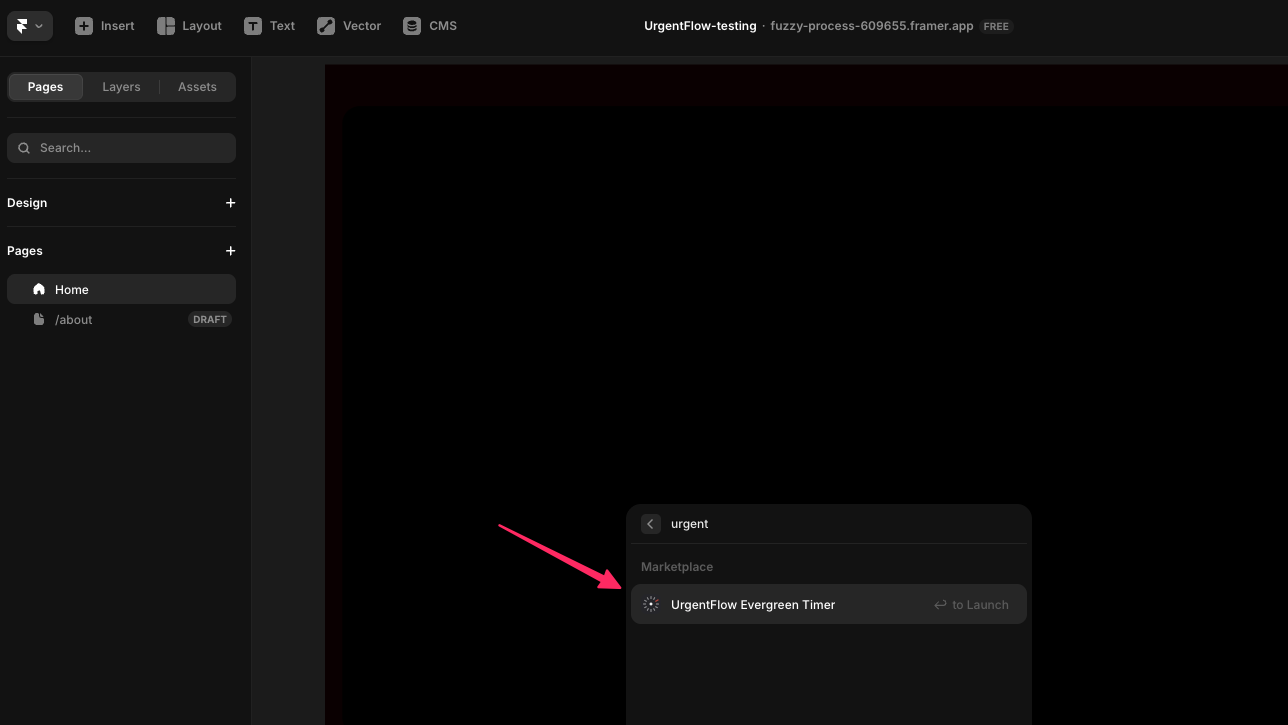
- UrgentFlow Evergreen Timer — the marketplace result. Press Enter to launch the plugin sidebar.
Sign in & register your site
The plugin opens to a sign-in screen. Click Sign in with Google. A consent popup opens — approve it. Once authenticated, you'll land on the Register Site form. Enter your published Framer domain (e.g. yoursite.framer.website) and click Register.
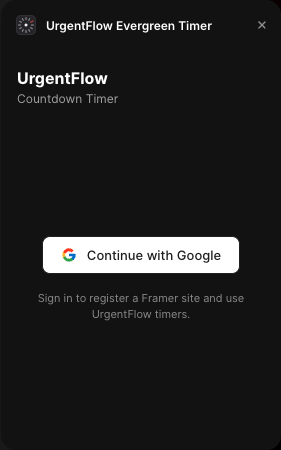
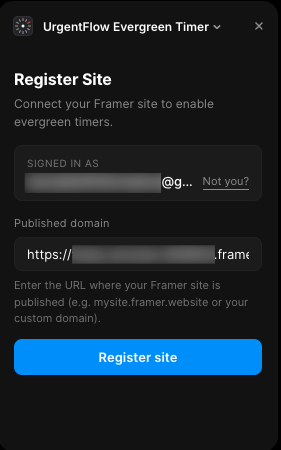
.framer.website suffix if you haven't connected a custom domain yet. Staging URLs won't work.
Start your Pro trial
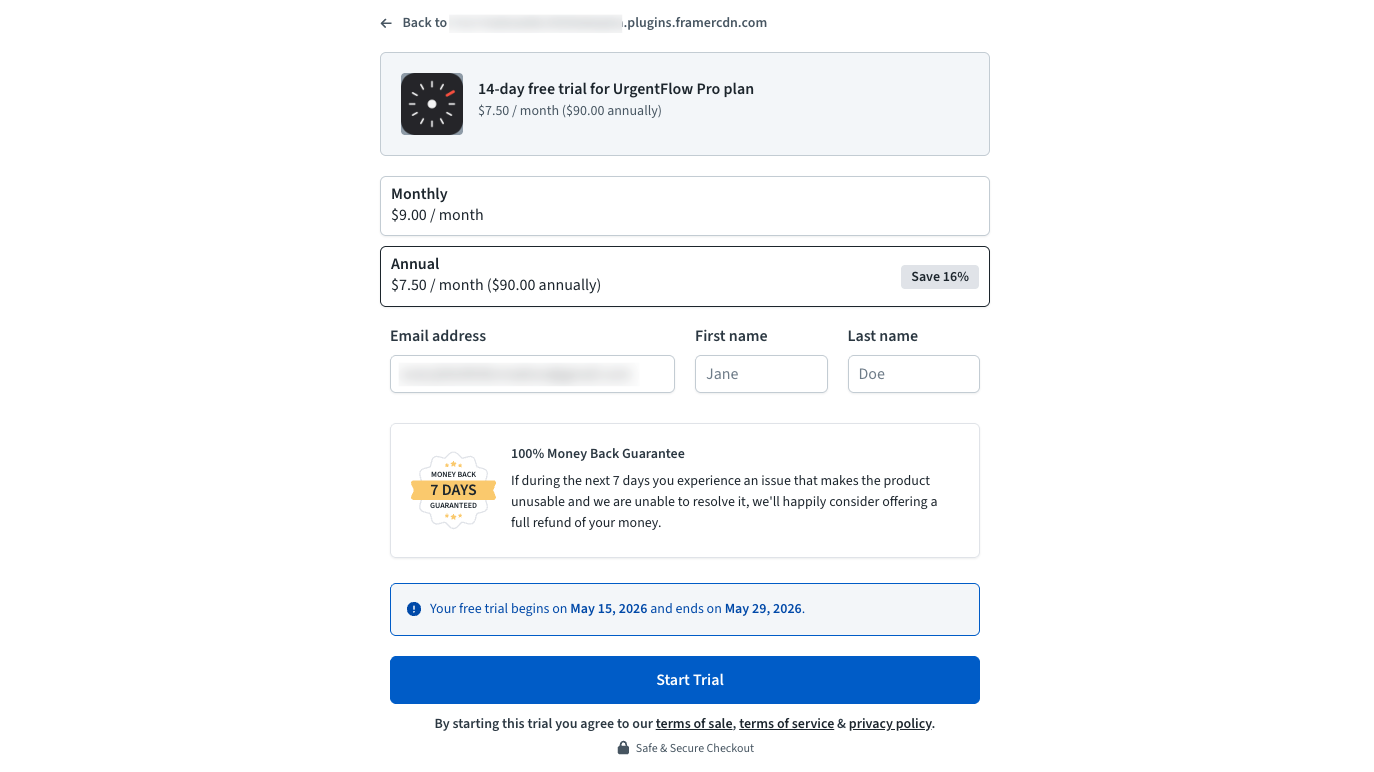
ProAfter registering your site, the plugin shows your plan status. On the free tier, evergreen timers are locked. Click Start 14-day free trial — no credit card required. A Freemius checkout tab opens. Choose Monthly or Annual, enter your email, confirm. Once complete, the plugin detects the upgrade automatically within 30 seconds.
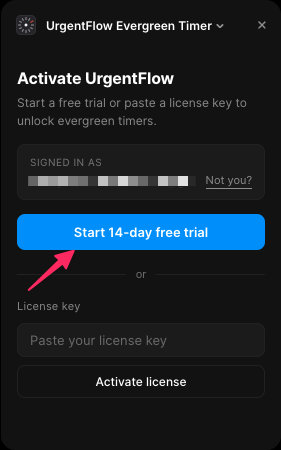
- Start 14-day free trial — kicks off the trial. No card required at this step.
Insert the timer
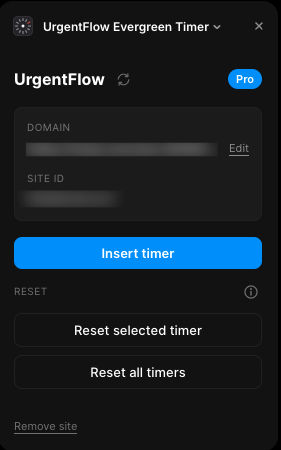
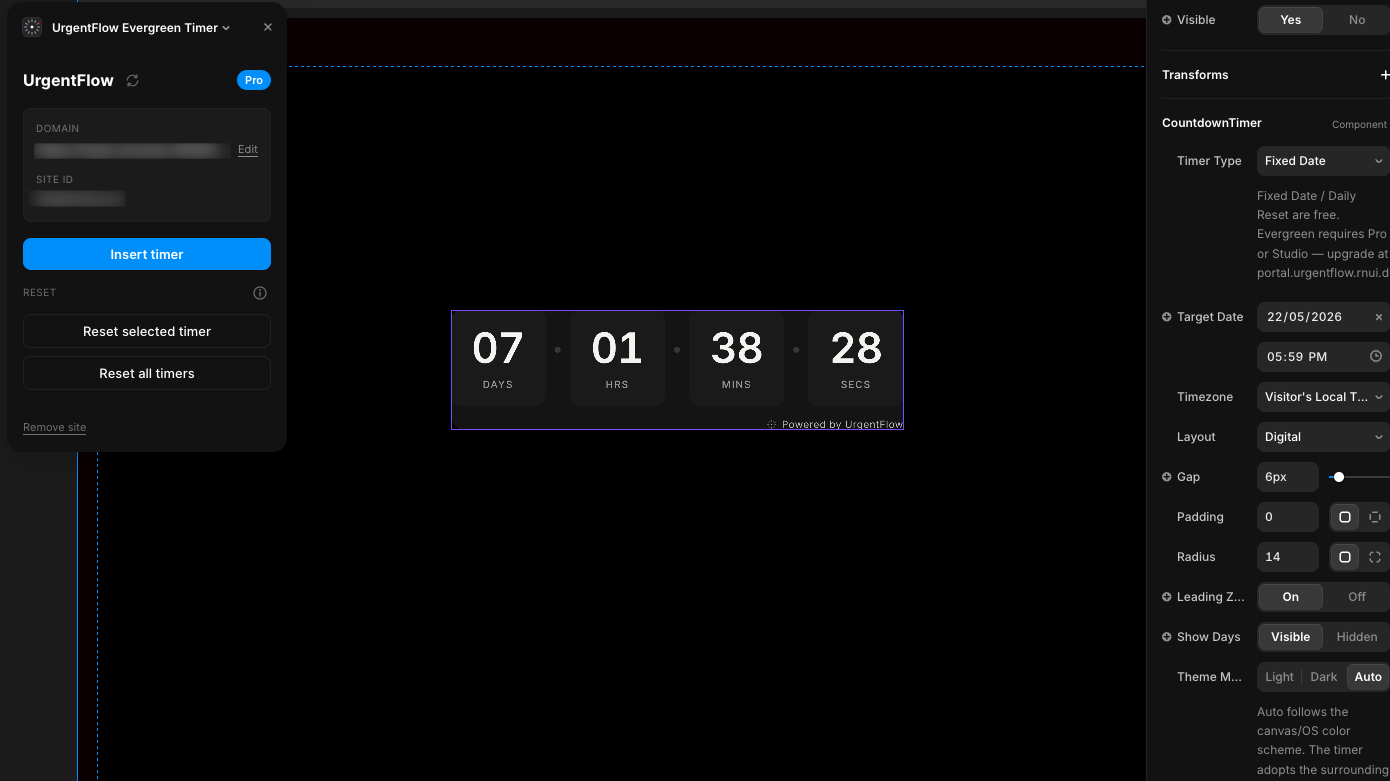
With Pro active, the plugin dashboard shows your registered site with a Pro badge. Click Insert Timer to place a countdown component on your canvas. Move and resize it like any other Framer component.
Switch to Evergreen mode
ProSelect the timer on the canvas. In Framer's right panel, find the Timer Type dropdown and choose Evergreen (Pro). Three new fields appear: Duration (Days, Hours, Minutes). Set your desired window — for example, 72 hours gives each visitor a 3-day countdown starting from their first visit.
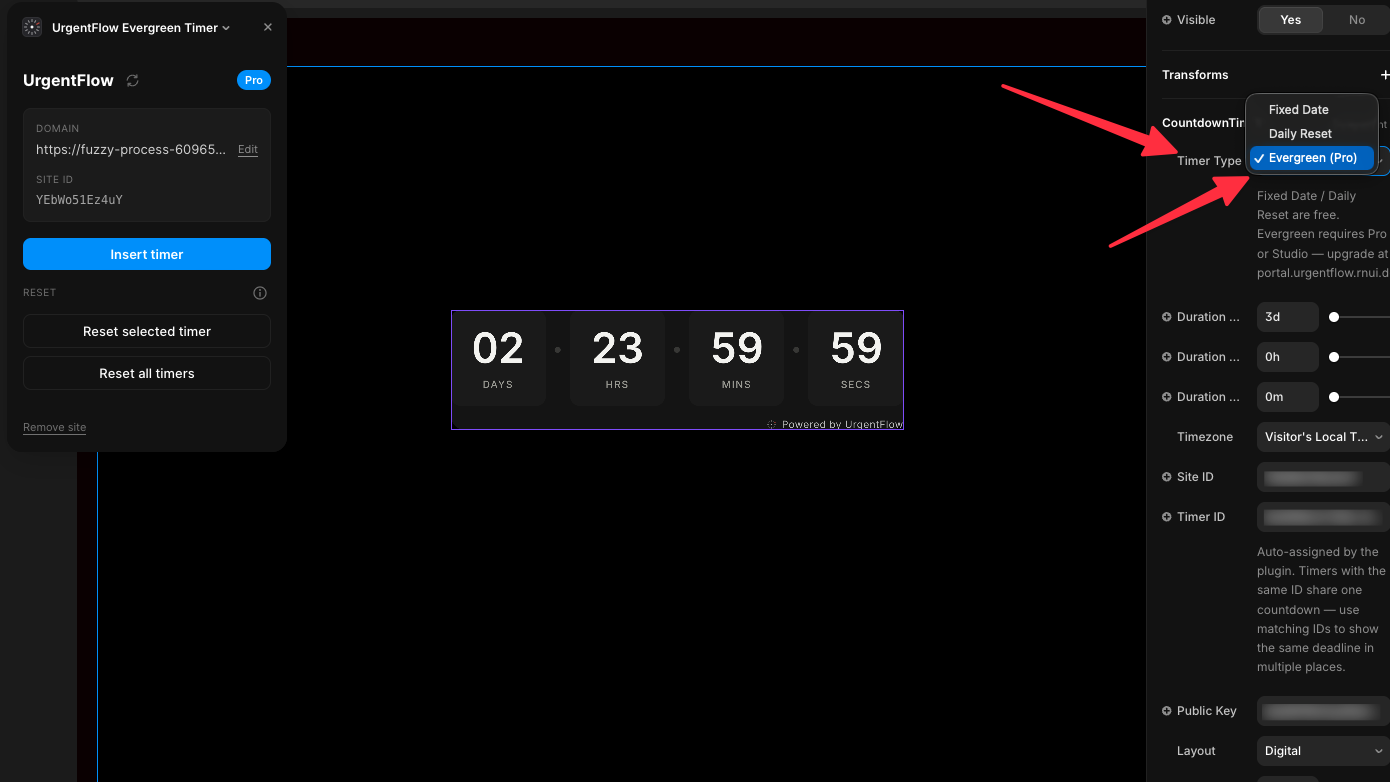
- Timer Type → Evergreen (Pro) — flips this timer from a fixed deadline to a per-visitor countdown.
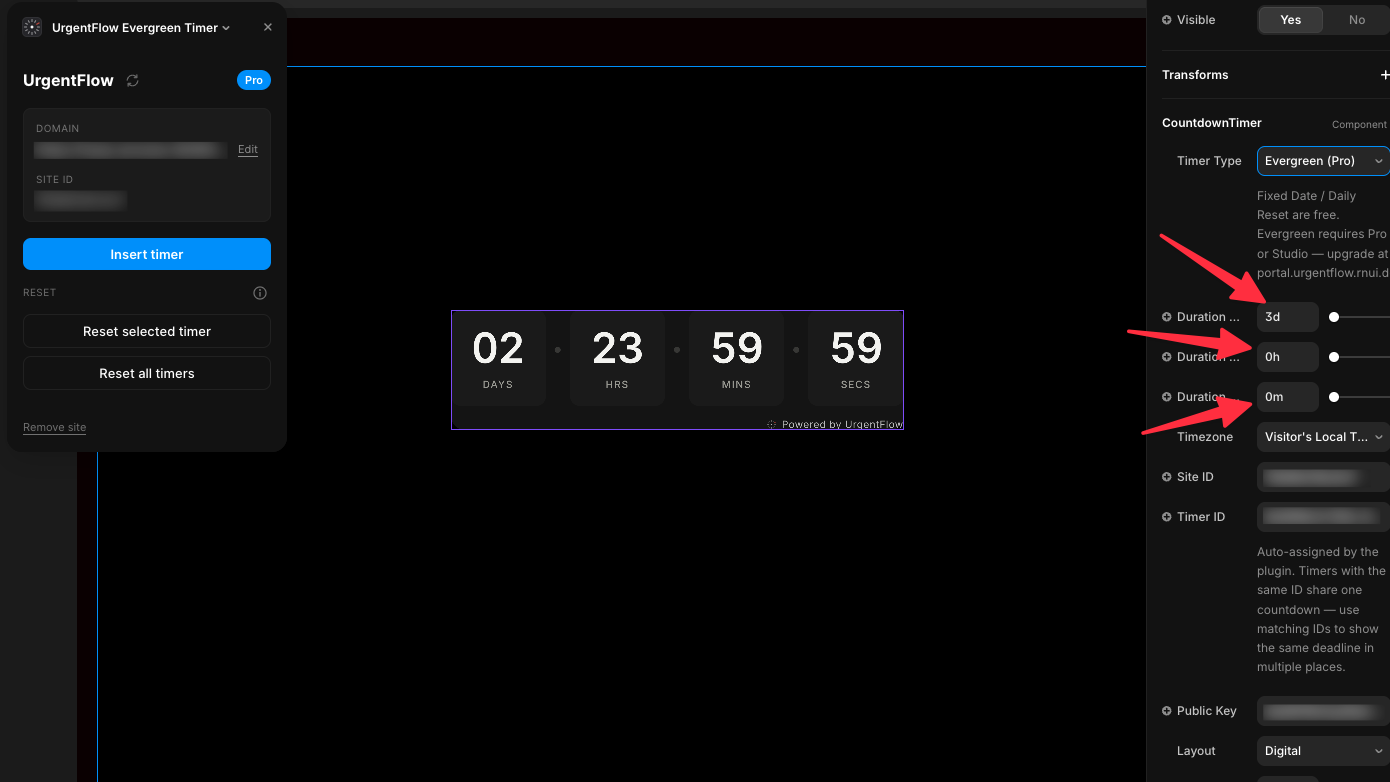
- Duration — Days / Hours / Minutes — the countdown window every new visitor gets. Example: 3 days from first visit.
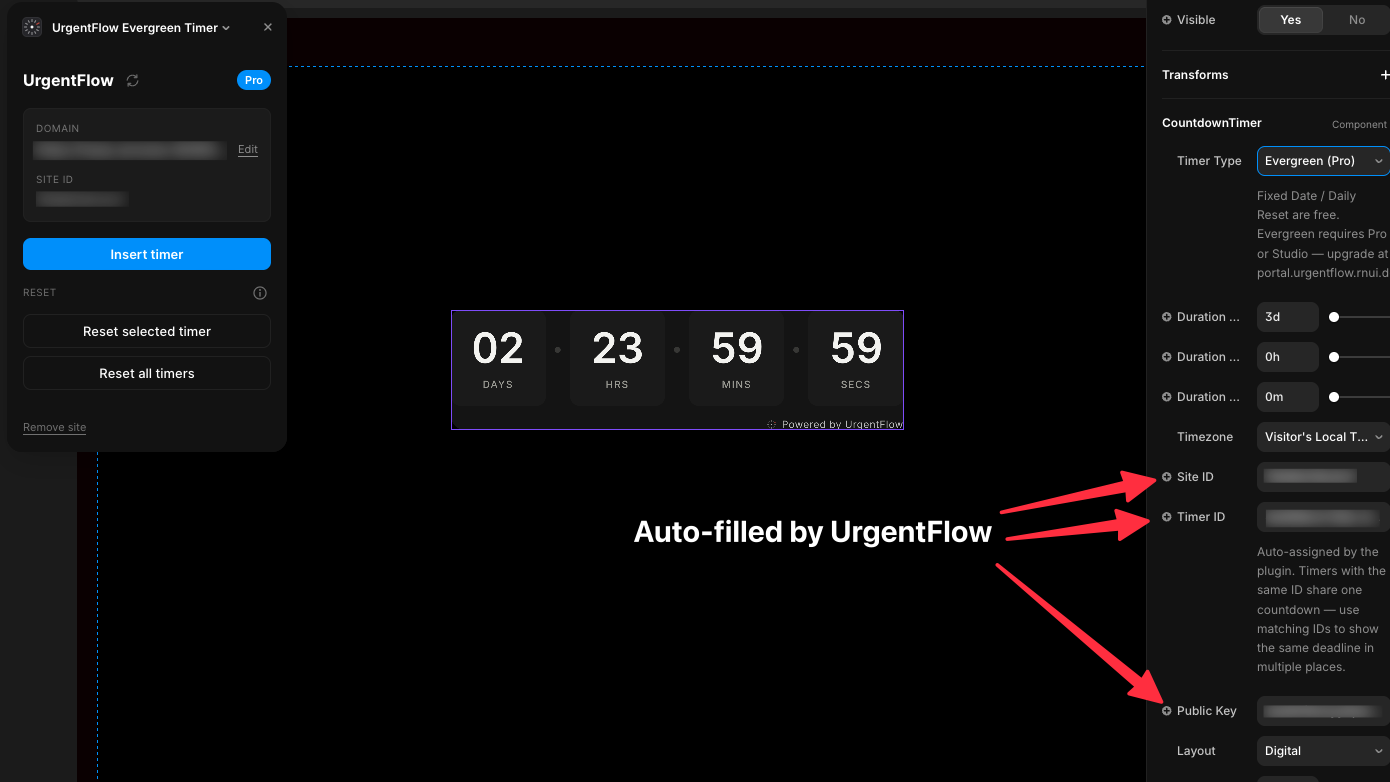
- Site ID — identifies your registered site. Auto-filled.
- Timer ID — unique per timer instance. Two timers with the same ID share one deadline pool.
- Public Key — authorizes the timer to read deadlines from your site. Auto-filled. Never edit.
| Property | What it controls |
|---|---|
| Timer Type | Set to Evergreen (Pro) to activate per-visitor deadlines |
| Duration — Days | Full days in the visitor's window (0–365) |
| Duration — Hours | Additional hours (0–23) |
| Duration — Minutes | Additional minutes (0–59) |
| Site ID | Auto-filled by plugin — ties the timer to your registered site |
| Timer ID | Auto-filled — unique per component instance, drives per-timer deadlines |
| Public Key | Auto-filled — authorizes deadline requests from your domain |
Pick a layout
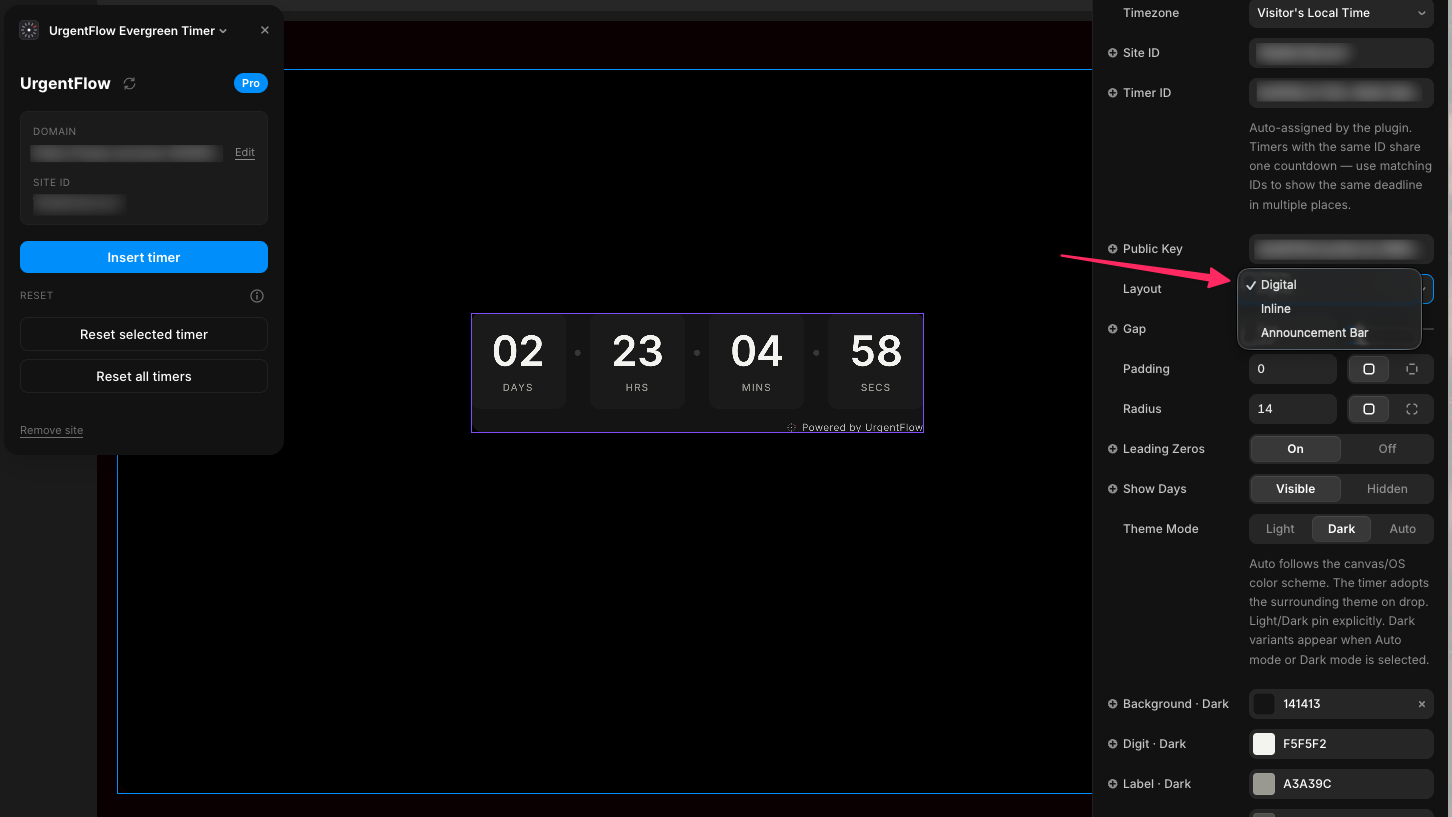
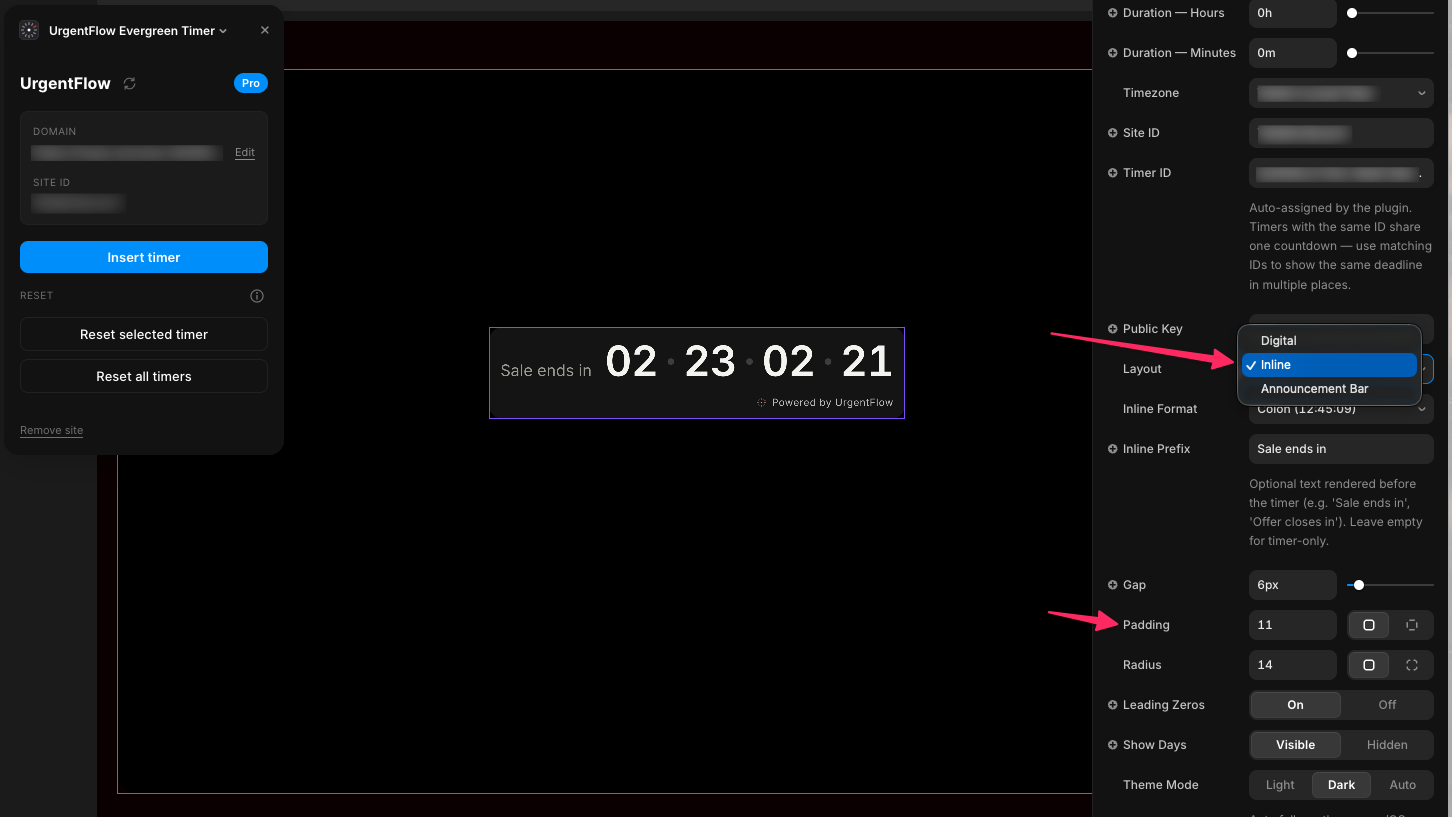
UrgentFlow ships with three out-of-the-box layouts. Every part of each layout — colors, font, gap, padding, radius, labels — is fully customizable from Framer's property panel. Open the Layout dropdown and pick the one that fits your design.
Digital
Big numbers in boxes with day/hour/min/sec labels. Best for landing pages and hero sections.
Inline
Compact, single-line "Sale ends in 02:23:02:21". Drop into headlines or paragraphs. Optional prefix text.
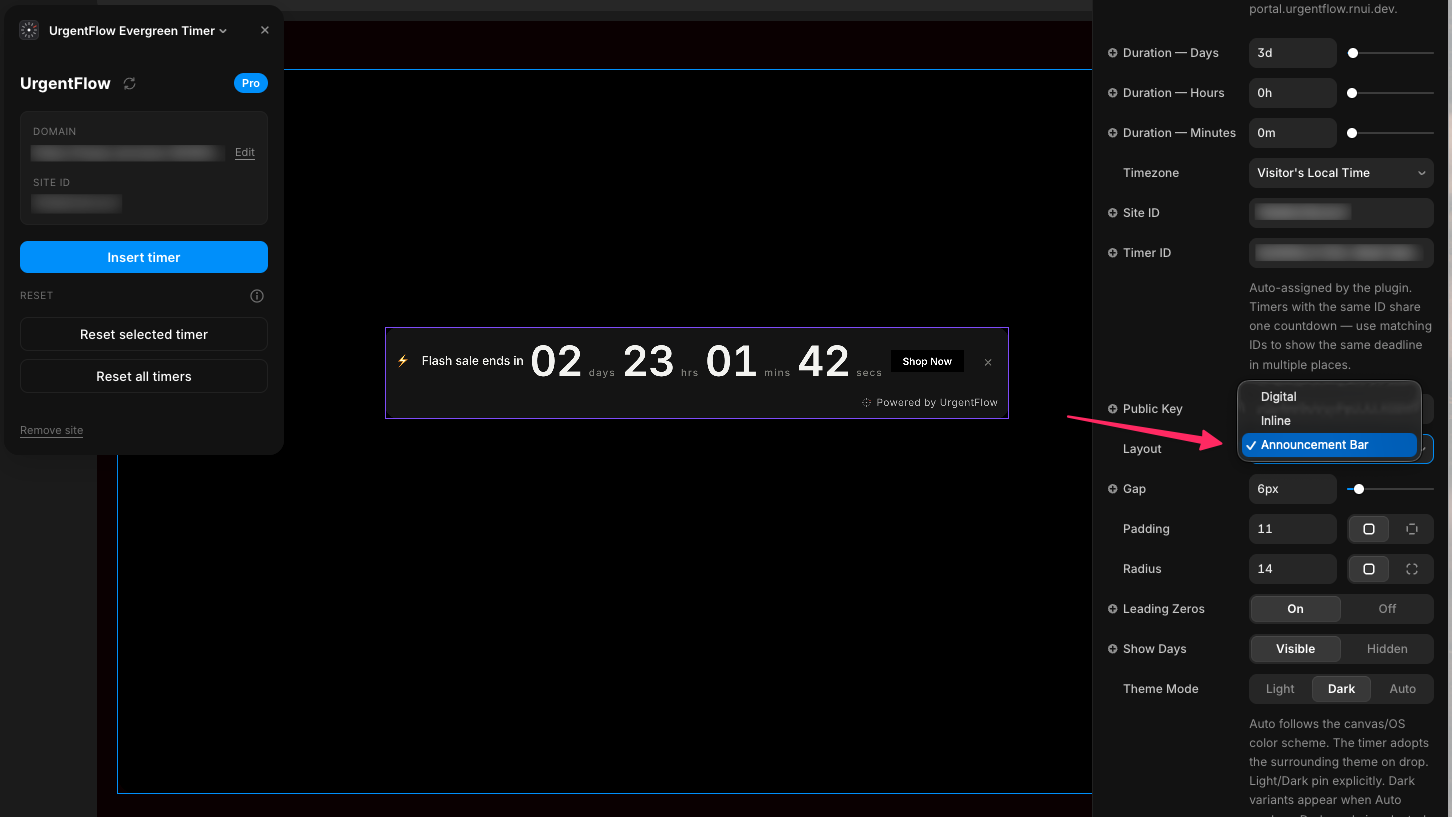
Announcement Bar
Full-width bar with prefix text, countdown, CTA button, and dismiss. Best at the top of a page.
Set end behavior
Choose what happens when a visitor's countdown reaches zero. Open the On Expire dropdown in the property panel. Pick one option — the relevant field appears immediately below.
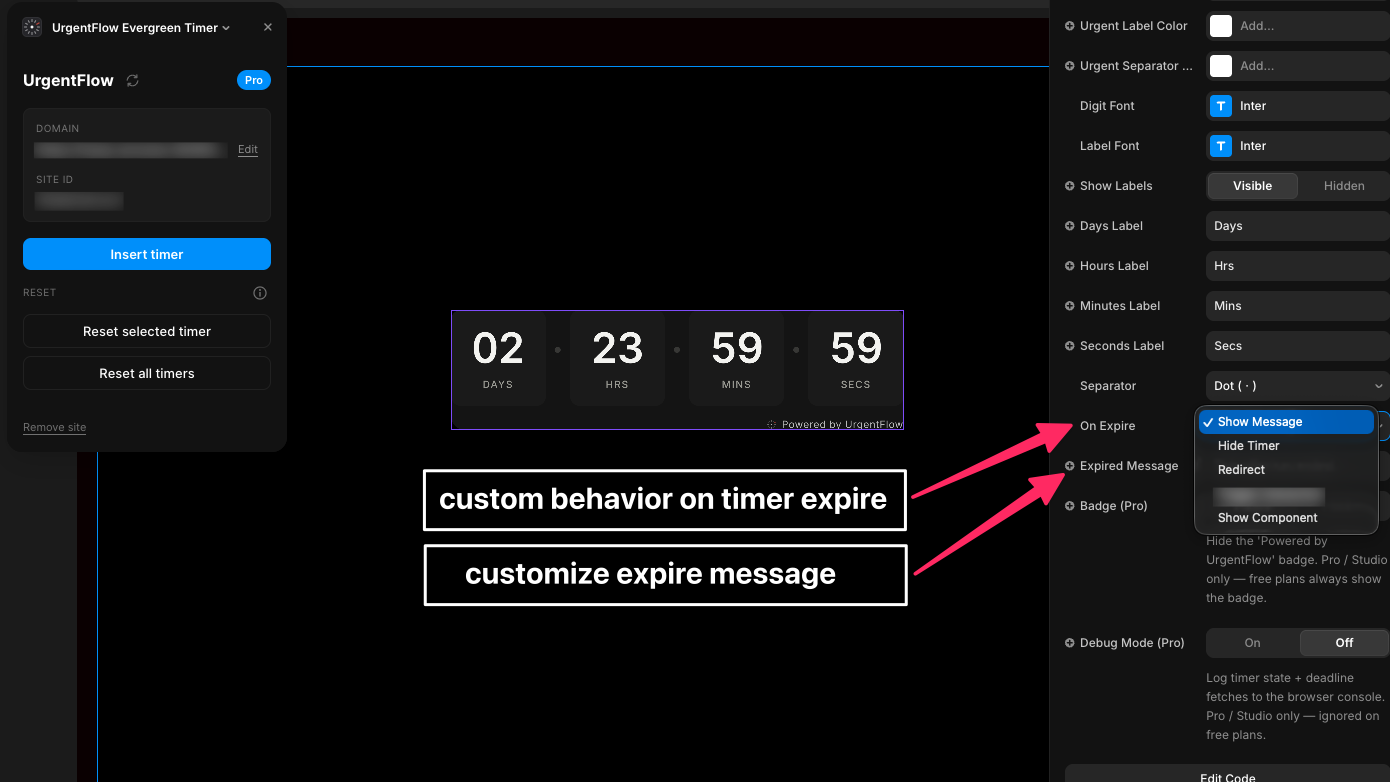
- On Expire dropdown — the field below changes based on what you pick (message text, redirect URL, etc.).
| End Behavior | What happens at zero |
|---|---|
| Show Message | Replaces the timer with a text string you define |
| Hide Timer | Removes the timer from the page silently |
| Redirect | Sends the visitor to a URL you specify |
| Show Component | Swaps to a component you've dragged into the Expired Slot |
Publish & verify
Hit Publish in Framer. Open your live site in a private/incognito window — this simulates a first-time visitor and starts a fresh deadline. The timer counts down from your configured duration. Open the same URL again (regular tab or new incognito): the same deadline persists. Close and reopen the tab: still the same deadline.
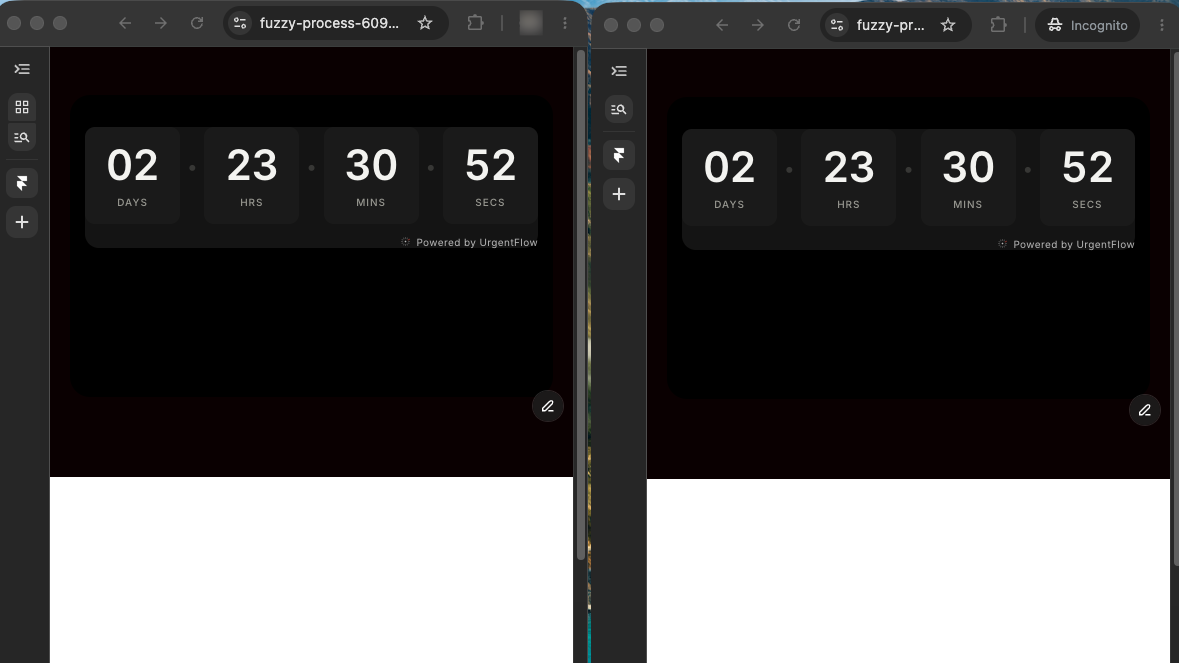
/api/deadline — you'll see the deadline timestamp returned by the server.
Plugin reference
Two parts of the plugin sidebar people miss on first run — the account menu and the reset / remove controls. Here's what each does.
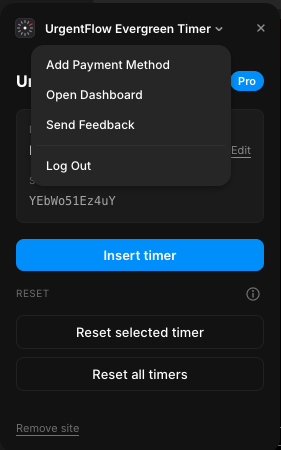
Account menu
Click the ⌄ chevron next to "UrgentFlow Evergreen Timer" at the top of the plugin sidebar.
- Add Payment Method — save a card now so your trial converts to paid without interruption when day 14 hits.
- Open Dashboard — jumps to portal.urgentflow.rnui.dev where you manage sites, billing, and view deadline analytics.
- Send Feedback — opens a short form. Bug reports and feature requests land in the maintainer's inbox.
- Log Out — signs out the current Google account. The plugin returns to the sign-in screen.
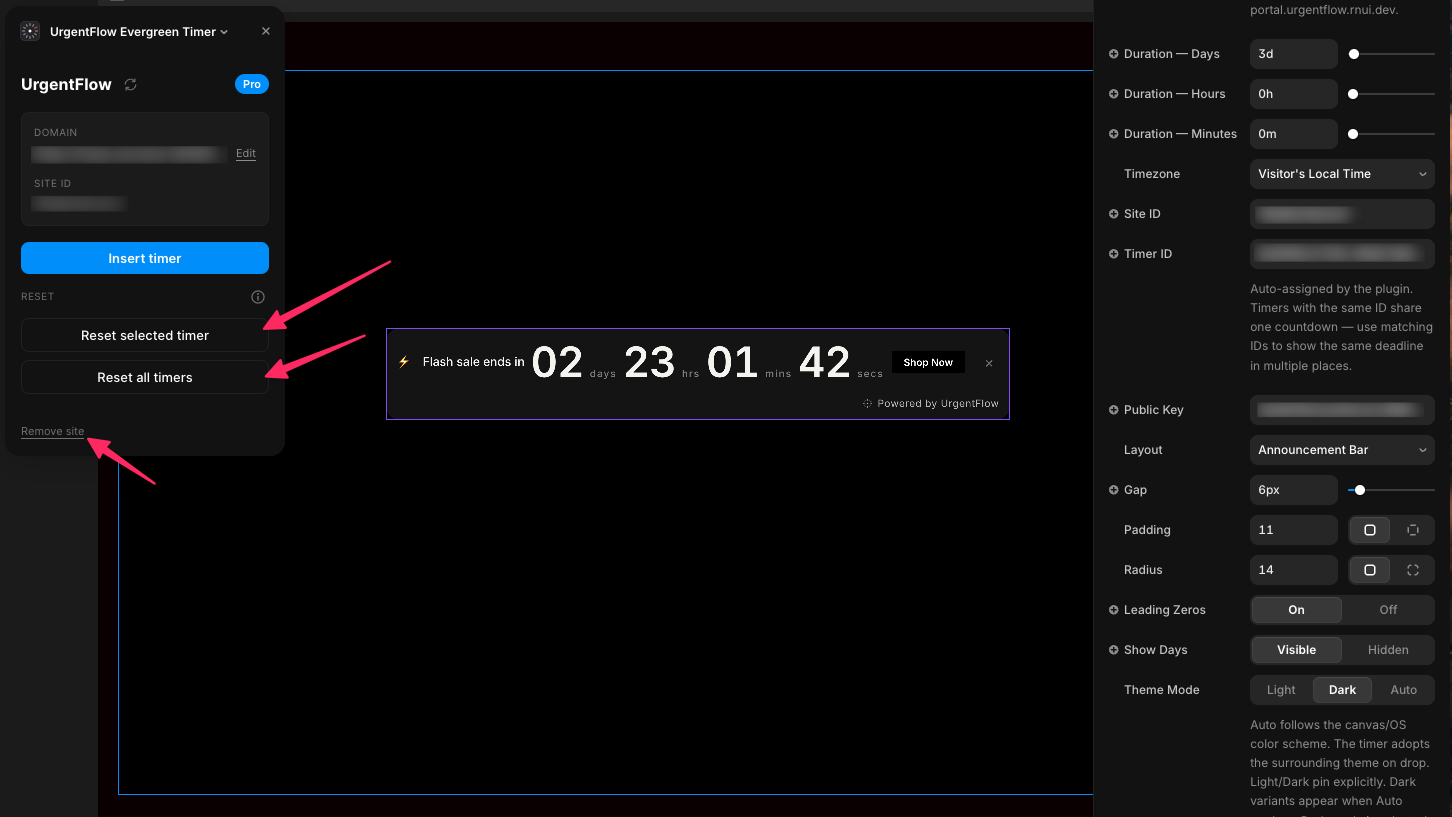
Reset & Remove buttons
Found at the bottom of the plugin dashboard. Use sparingly — these affect real visitors.
- Reset selected timer — wipes every visitor's deadline for the timer you currently have selected on the canvas. Everyone who visits next gets a brand-new countdown. Use it when re-launching one specific offer.
- Reset all timers — same wipe, but for every timer on this site. Useful when you're re-running a campaign from scratch and want all visitors to restart together.
- Remove site — disconnects this Framer site from UrgentFlow. Live timers stop loading new deadlines until you re-register. Visitor data is preserved for 30 days in case you change your mind.
FAQ
What's the difference between a fixed-date and evergreen timer?
Fixed-date: one deadline shared by all visitors — everyone's clock runs to the same point in time. Great for product launches, flash sales with a hard end date.
Evergreen: each visitor gets their own countdown that starts on their first visit. A 72-hour window for visitor A starts when A lands on your page — not when visitor B does. Ideal for personalized offers, onboarding sequences, and urgency that doesn't reset at midnight.
Does clearing cookies or using incognito reset the visitor's deadline?
No. UrgentFlow identifies visitors using a combination of signals stored server-side — not browser cookies alone. Clearing cookies, switching to incognito, using a VPN, or changing devices does not reset the clock.
The deadline lives in Firestore, keyed to a visitor fingerprint. As long as the same person returns (same browser + IP signature), they get the same deadline back.
Can I have different evergreen timers on different pages?
Yes. Each timer component gets a unique Timer ID (auto-generated by the plugin when inserted). Different Timer IDs mean separate deadline pools — visitors can have a 48-hour clock on your landing page and a separate 24-hour clock on your checkout page, both running independently.
What happens if my Pro subscription lapses?
The component falls back to fixed-date mode gracefully — no broken UI, no errors. Existing visitor deadlines are preserved in Firestore. Re-subscribing restores evergreen behavior immediately on next page load. No data is lost during the lapse.
Is there a free trial? What does Pro cost?
14-day free trial, no credit card required. After the trial: $9/mo (monthly) or $90/yr (2 months free) for up to 5 registered sites. A 7-day money-back guarantee applies once you're billed. Additional sites are $3/mo each. The Studio plan at $19/mo covers 15 sites flat.
The free tier remains fully functional for fixed-date timers — no time limit, no banner until you choose to upgrade.
Can visitors game the deadline by clearing storage?
Deadlines are stored server-side, not in the browser. There's nothing in localStorage or cookies to clear. Visitor identification relies on signals that survive browser resets — clearing site data, hard refreshing, switching to private browsing, or using a different device still returns the same deadline from the server.
My Framer site uses a custom domain. Do I register the custom domain or the .framer.website subdomain?
Register whichever domain your visitors actually land on. If your site is live at yourbrand.com, register yourbrand.com. If you haven't connected a custom domain yet, register the Framer-assigned domain (e.g. yoursite.framer.website). You can update the domain later from the plugin dashboard.
Does the component add any JavaScript to my site bundle?
The core component (fixed-date mode) is under 22 KB gzipped. The evergreen deadline module is lazy-loaded as a separate chunk (~8 KB extra) — it only downloads if Timer Type is set to Evergreen and the visitor actually hits that page. Visitors on pages with only fixed-date timers never fetch it.
Troubleshoot
"Powered by UrgentFlow" badge still showing after upgrading to Pro
Select the timer component on the canvas, then click Sync Selection in the plugin sidebar. This re-injects your licenseKey into the component props. If the badge still appears after syncing, the timer was inserted before you upgraded — re-sync resolves it. Publish again after syncing.
Timer loads and immediately shows 0:00:00 on the published site
The component isn't receiving credentials. Select the timer and run Sync Selection to inject Site ID, Timer ID, and Public Key. Then verify your registered domain in the plugin exactly matches your published URL — including whether or not it has www.. To confirm the API call is reaching the server: DevTools → Network → filter for /api/deadline and inspect the response.
Plugin shows "site not registered" or registration fails
Publish your Framer site first — registration verifies against a live domain. Use the exact URL Framer assigned (copy it from your published site's address bar, not from Framer's project settings). Staging URLs and localhost are not accepted. If registration still fails after publishing, try again in a fresh browser tab.
All visitors seem to share one deadline instead of getting individual ones
Timer ID is probably empty or missing. Select the component, open DevTools → Network, reload the page, and inspect the /api/deadline request body — check that timerId is present and non-empty. If it's missing, run Sync Selection in the plugin and republish.
Completed Freemius checkout but plugin still shows free plan
Keep the UrgentFlow plugin tab open while completing checkout. The plugin polls every 2 seconds for up to 5 minutes. If the Pro badge doesn't appear: close the plugin sidebar and reopen it (click the UrgentFlow plugin icon again) — this triggers an immediate license check. If still on free after that, check your email for a Freemius confirmation and contact support via the feedback link below.